The screen and controls
Contents
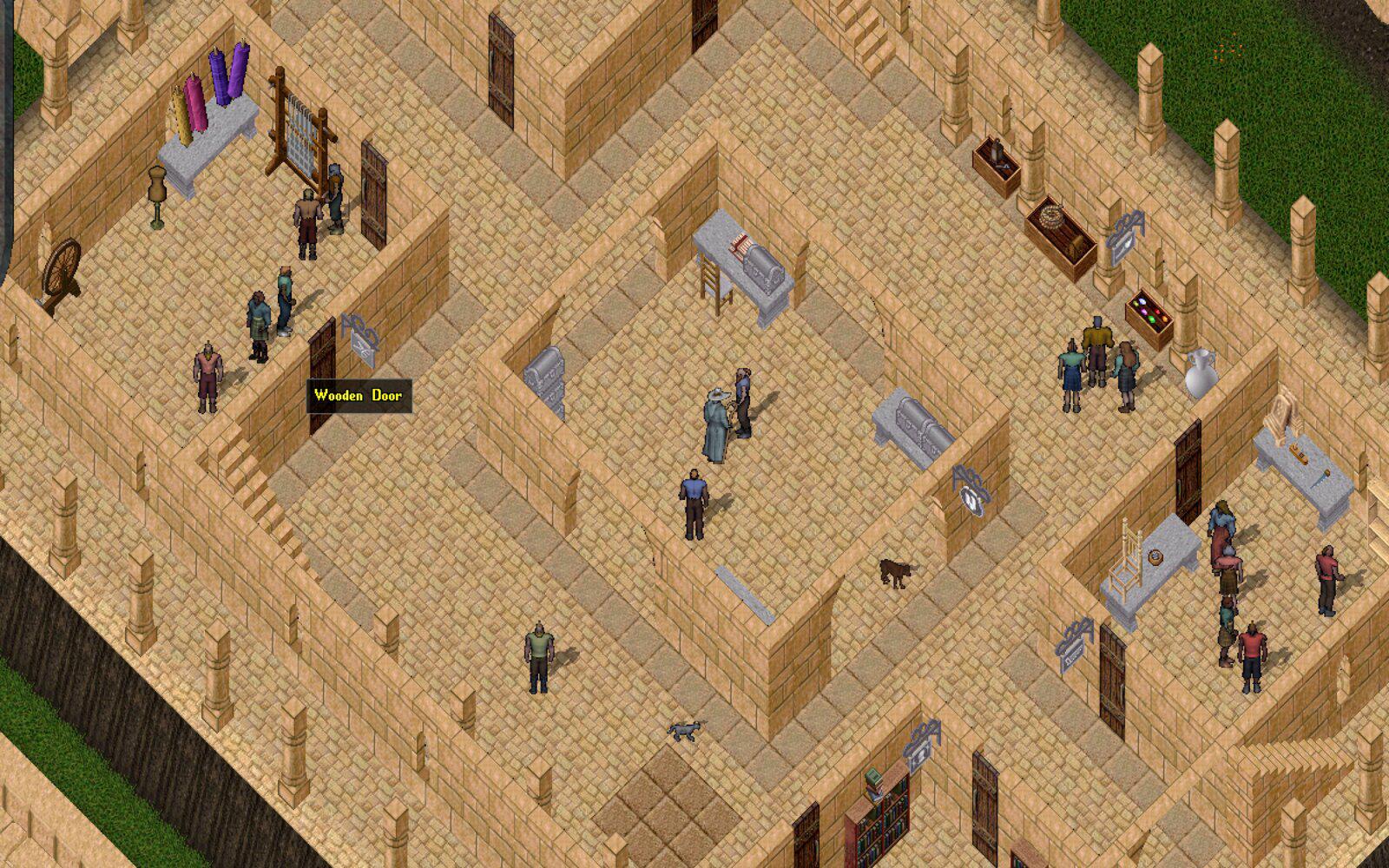
The world is drawn at an angle, with your character in the middle. Windows, which UO calls gumps, float over it.
The mouse
| Do | How |
|---|---|
| Walk | Hold the right mouse button. The further the pointer from your character, the faster you go |
| Look at something | Click it once: its name appears above it. On people, pets and yourself a menu of actions opens too |
| Use or open | Double-click: doors, bags, the moongate, a horse to ride it |
| Pick up or move | Drag with the left button, into your backpack or onto the ground |
| Close a window | Right-click it |
| Speak | Type and press Enter. People near you see it above your head |
| Fight | War mode, then double-click the enemy (below) |
The bar at the top of the screen opens the main windows: Character (the paperdoll), Inventory (backpack), Journal (everything said and seen recently) and World Map.
Keys
| Key | Does |
|---|---|
| Alt+P | Paperdoll |
| Alt+I | Backpack |
| Alt+J | Journal |
| Alt+R | Radar: the small map of the area around you |
| Alt+O | Options, where the macros are |
| Tab (hold) | War mode while held |
| Ctrl+Shift (hold) | Everyone’s name over their head, coloured by notoriety |
| Ctrl+B, Ctrl+S | Bow, salute |
Zooming the world in and out with Ctrl and the mouse wheel is off at first. Turn it on in Options: Enable mousewheel for in game zoom scaling.
Fighting
- Enter war mode: press War on the paperdoll, or hold Tab
- Double-click the creature to attack. Your character swings by itself as long as the target is in reach, so walk up next to it. Bows and spells work from a distance
- Drag the creature with the left button to pull out its health bar
- Leave war mode to stop. The monster does not stop chasing
F3 attacks the nearest monster in one press (see Macros below).
Names are coloured by notoriety, how the game sees each character. Blue is innocent: attacking one makes you a criminal. Grey can be fought by anyone: most monsters and animals, and criminals. Red is a murderer, or one of the evil monsters. Yellow cannot be hurt, such as shopkeepers. Player against player has the whole list.
The paperdoll
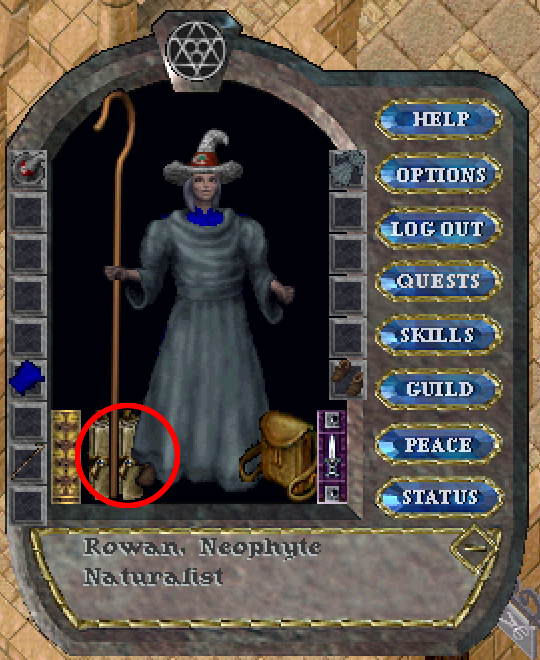
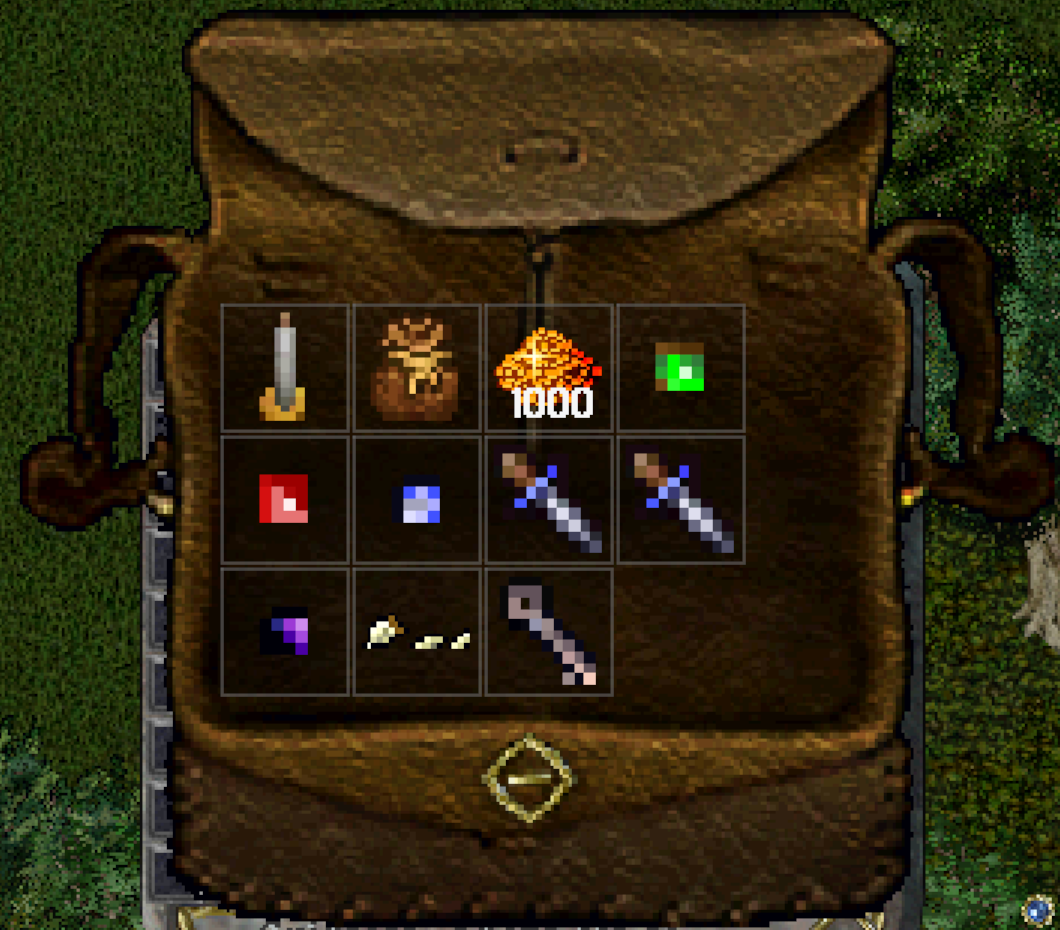
The paperdoll shows your character and what they wear. Drag clothes and weapons onto it to put them on. The buttons on the right open the skills list, the status window and the options. At the bottom left are two scrolls: the right-hand one is the party manifest (see Guilds and parties). The bag at the bottom right is your backpack: double-click it to open it. Bags, chests and the backpack lay out their contents in a grid, one square per item: drag the small square at the window’s bottom-right corner to make it bigger or smaller (How Outpost differs).
Status and skills
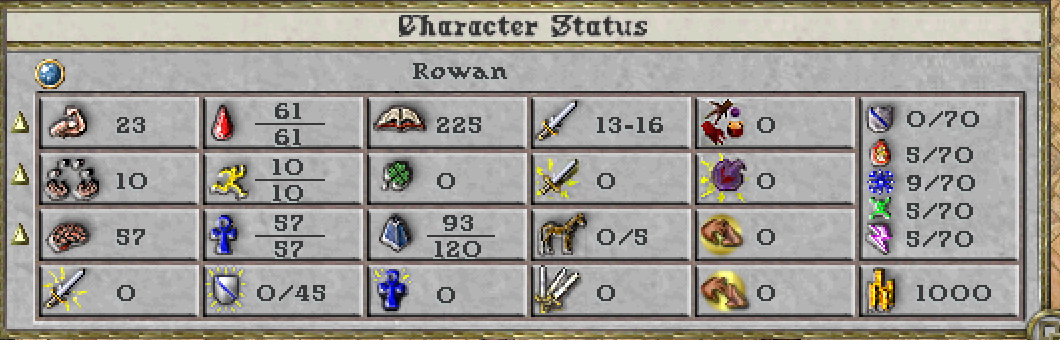
The status window (Status on the paperdoll) is your character in numbers. Hover over any value for its name.
- Strength sets hit points and how much you can carry, and adds weapon damage
- Dexterity sets stamina and how fast you swing a weapon
- Intelligence sets mana, and makes some spells stronger
- Followers counts tamed and summoned pets: a horse or a dog takes one slot, stronger creatures two or more, of five
Every value in the status window
| Column | Shows |
|---|---|
| Stats | Strength, dexterity and intelligence, each with a small arrow to its left, and hit chance increase under them |
| Health | Hit points, stamina and mana, each as current/most, and defence chance increase under them |
| Limits | The stat cap (the most your three stats can add up to, 225), luck, and weight as carried/most, then lower mana cost |
| Damage | Your weapon’s damage range, followers as used/most, then weapon damage and swing speed increases |
| Spells | Lower reagent cost, spell damage increase, faster casting and faster cast recovery, all from magic items |
| Resistances | Physical, fire, cold, poison and energy resistance as current/most, and the gold in your pack at the bottom |
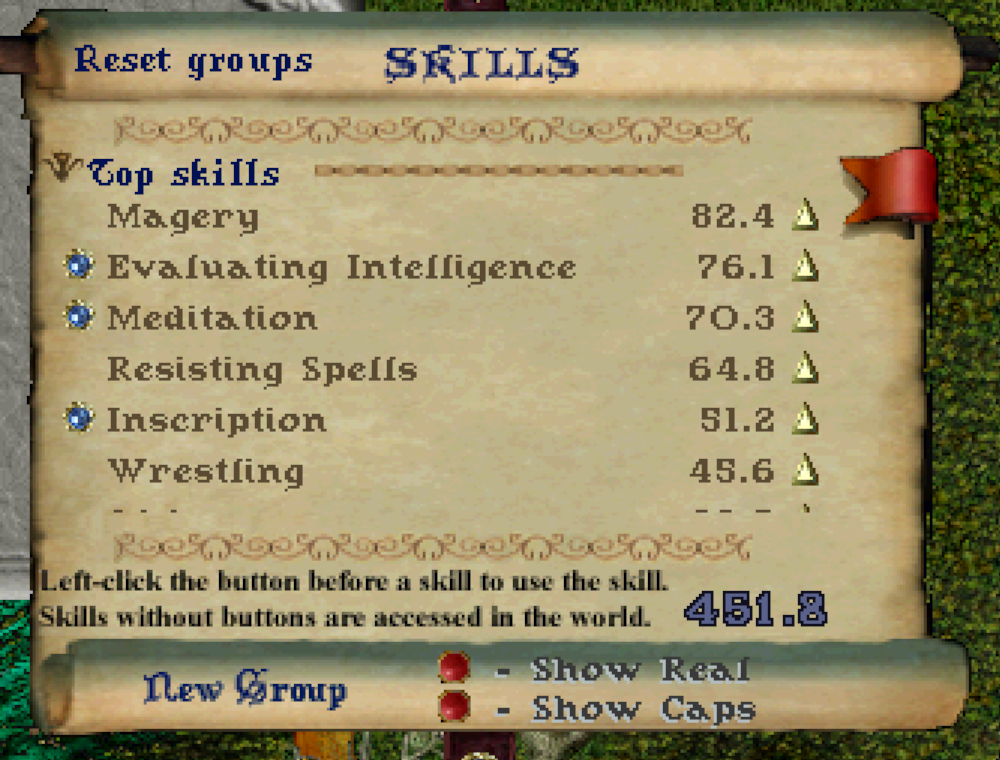
Skills go up by being used, from 0 to 100 (Grandmaster). The blue button beside a skill in the skills window uses it, for skills such as Animal Taming or Hiding that are used on purpose. Others, such as Magery or Swordsmanship, rise as you cast or fight. The total of all skills is capped at 700, so a character cannot master everything.
The little arrows
Stats rise by themselves as you use skills that lean on them: fighting raises strength and dexterity, casting raises intelligence. Once the three add up to the stat cap, one has to fall for another to rise. The arrow beside each stat decides which. Click it to step through:
| Arrow | Means |
|---|---|
| Up | This stat may rise (the start for all three) |
| Down | This stat may fall, to make room for the others |
| Lock | This stat stays where it is |
A mage might lock intelligence, set strength to up and dexterity to down. The skills window has the same arrows beside each skill, for the 700 skill total.
Macros
A macro is a key that does one or more things. New characters start with six already set up:
| Key | Macro | Actions |
|---|---|---|
| F1 | Heal self | CastSpell Greater Heal, WaitForTarget, TargetSelf |
| F2 | Recast on last target | LastSpell, WaitForTarget, LastTarget |
| F3 | Attack nearest | SelectNearest (Hostile), AttackSelectedTarget |
| F4 | Bandage self | BandageSelf |
| F5 | Pets follow | Say all follow me |
| F6 | Pets guard | Say all guard me |
Making your own macros
Open Options (Alt+O), go to the Macros page and press New. Give it a name, click the key box and press the key to use (with Alt, Ctrl or Shift if wanted), then add actions from the list one after another. The list uses the client’s own names:
| Macro | Actions |
|---|---|
| Heal yourself (mage) | CastSpell Heal, WaitForTarget, TargetSelf |
| Bandage yourself (warrior) | BandageSelf |
| Tame (tamer) | UseSkill Animal Taming, then click the animal |
| Heal your pet | CastSpell Heal, WaitForTarget, LastTarget |
| Hit back | AttackLast |
| Call the pets | Say with the text all follow me |
| Show everyone’s names | AllNames |
| Use the last thing again | LastObject, LastSkill or LastSpell |
| Cast again on the same target | LastSpell, WaitForTarget, LastTarget |
| Fight the nearest monster | SelectNearest (Hostile), AttackSelectedTarget |
LastTarget answers a target cursor with whatever you last targeted, a creature or a spot on the ground; WaitForTarget holds the macro until the cursor appears. SelectNearest with Hostile picks the nearest grey, criminal, enemy or murderer, which is most monsters.
Create macro button on the same page puts the macro on the screen as a button to click. Spells work the same way without a macro: drag a spell out of the spellbook onto the screen and it becomes a button. A skill dragged out of the skills window does the same.